The idea, in plain English
Start here.
A clear mobile journey lets someone find the relevant information, choose an action, complete it and understand the resulting state on a narrow screen. Check reading and interaction separately, then test the whole task. A responsive screenshot can reveal layout problems, but it does not establish that touch, the on-screen keyboard, errors and receipt states work on a real phone.
A workshop page looks tidy in a mobile preview. Once someone opens the menu, a sticky bar covers its close control; later, the keyboard hides a form error. The layout screenshot missed both problems. A useful mobile review follows a visitor’s task through the states where the interface changes.
A few words you’ll meet.
OPEN WHAT YOU NEED ↙Viewport
The available viewing area used by the browser to lay out and show the page.
Reflow
Content rearranging or wrapping to fit the available space while retaining its information and functionality.
Tap target
The actual interactive region that accepts an action, which may be larger than the visible icon or label.
Feedback state
The interface’s explanation of what happened, such as an error, a pending request or successful acceptance.
Start with a task and the information it needs
Choose a concrete journey, such as finding a workshop and requesting a place. Identify the starting page, details the person needs and the intended next step. Keep essential conditions available in the mobile presentation rather than deleting them to make the screen shorter. A concise page still needs to support the decision.
Record where someone enters and how they reach the relevant detail. Check the menu, in-page links and return path, including what happens after an overlay closes. A sticky header or large promotional panel can hide the very heading or control the person is trying to reach. Review the changed state, not only the untouched first screen.
Make the content readable as the space changes
Look for clipped headings, overlapping cards, wide images and text that forces sideways scrolling. Enlarge the content and check that the information and controls remain available. W3C’s Reflow criterion uses a width equivalent to 320 CSS pixels for vertically scrolling content, with exceptions for parts that require two-dimensional layout. It is about preserving use when space is constrained, not merely shrinking a desktop screenshot.
A wide table or diagram may need its own suitable treatment; it should not force ordinary paragraphs beyond the whole page’s edge. Keep useful image details visible in the mobile crop and explain information that should not depend on the image alone. Do not hide overflow or disable zoom just to make the screenshot appear clean.
A tap is one step. Follow the result.

Check activation, typing and recovery
Try the actual controls, including menu close buttons, accordions and form actions. Measure the interactive area rather than judging an icon’s drawing. WCAG 2.2 Level AA’s Target Size Minimum criterion specifies 24 by 24 CSS pixels or a qualifying exception, including its spacing rule. It is a minimum criterion, not a guarantee of comfortable interaction; larger, well-separated important controls can help.
Check keyboard operation and visible focus as well as touch. In forms, retain clear labels and explain what is wrong and how to correct it. Try an incomplete or invalid entry, correct it and inspect whether other valid information survives. On an actual phone, check the on-screen keyboard and field visibility. Do not call the journey complete merely because tapping Submit produces a success-colored banner.
Verify the outcome and record the test’s limits
Distinguish the action attempted, the interface message and the result received by the system. A request-received state is different from a confirmed workshop place. In a suitable test environment, check the intended record or authorized receipt path and make its meaning clear. A button opening an app or showing a message does not establish that a request reached its destination.
Keep the setup, steps, expected and actual behavior, affected task, evidence and retest result. Use real devices and relevant browsers when available, and state what you could not test. Fix a blocked action before cosmetic spacing, then repeat the original task and check nearby layouts or shared components. A basic mobile review finds useful issues; it does not certify complete accessibility or every device combination.
A workshop request with three distinct states
Original fictional Lumen Drawing Club journey: find a class, read the details, request a place and inspect the resulting state. A place requires the club’s confirmation. The following issue notes are invented teaching observations, not completed tests of a live club website.
| Journey moment | Fictional obstacle | What to check |
|---|---|---|
| Open and close the menu | Sticky bar covers Close | Can the control be reached and the reading position restored? |
| Correct a required-field error | Only a red border appears | Is the problem explained in text and can it be corrected without losing valid input? |
| Send the request | Banner says request received | Does the intended test record exist, and is it clear a place is not yet confirmed? |
| Retest the change | Narrow preview looks tidy | Repeat the task; record real devices/browsers tested and remaining limits. |
Put it into practice
Write a mobile journey test
Plan the fictional workshop request. The menu closes poorly, the form reports an error only by color and the success message could be mistaken for a confirmed place.
- Name the start, needed details, action and expected request state.
- Write steps that expose the menu and error states.
- Explain the reading, tap-target and keyboard checks you would make.
- Specify how the request record and unconfirmed place would be checked.
- Write an issue note and retest condition without inventing device coverage.
Keep your working notes in your own document. This page saves only your completion check, not your answers or customer data.
Check your understanding
Make the call.
Choose an answer for each question. Then compare the reasoning.
You have a useful next step.
- Test a complete task, including menus, typing, errors and feedback.
- Preserve readable content and usable controls across changing space.
- Verify the intended outcome and record actual test coverage.
Completion is your own learning record. Quiz scores and practice checks are saved separately, on this browser.
Sources & context
The sources below explain the factual foundations and editorial methods used in this lesson. Worked examples, planning models and exercises are illustrative teaching material.
- W3C: Reflow
Primary criterion and intent sections reviewed for 320 CSS-pixel equivalent width, retained information/functionality and two-dimensional-layout exceptions.
- W3C: Target Size Minimum
Current primary 24 by 24 CSS-pixel AA criterion and specific exceptions. Passing this one check does not establish full conformance.
- W3C: Keyboard
Primary keyboard-interface requirement and its path-dependent-input exception; no claim that every input method is identical.
- Solutions 1313: Mobile website testing checklist
Full editorial task-based test method, changed states, receipt checks, issue records and real-device coverage limits.
Explore the full companion guide
This lesson is also part of the journal. Keep reading for the original guide, supporting references and further detail.
Mobile website usability means a person can understand the page, find the relevant route and complete the task comfortably on a small screen. A layout that fits the width is only the beginning. Follow one realistic journey from arrival to confirmation, including menus, keyboards, errors and interruptions.
Follow one task from arrival to completion
Choose a task the page should support, such as checking service coverage and requesting an estimate. Start from a realistic entry page rather than assuming everyone visits the homepage first. Note what the visitor needs to understand before acting and where the page supplies each answer.
Then perform the task on a real phone. Do not stop at whether the hero looks good. Open the menu, follow the relevant link and inspect the action's result. When a booking tool or checkout takes over, include that transition in the review. A technically successful page view can still leave the person unsure which service they selected or whether the request was received.
Give navigation and page text a clear job
Use labels that describe the destinations. Organize the menu around tasks and information a visitor needs, rather than the internal team structure. The U.S. Web Design System's header guidance recommends clear labels, a visible current section and navigation that is tested with users. These are design principles, not a reason to copy a government site's layout.
Keep the offer, main paths and useful proof in a readable sequence. Long content can work on a phone when headings explain the sections and the next action remains connected to its supporting information. Do not remove essential conditions to make the page shorter. For a store, the product page checklist helps identify the option, cost and policy details that must remain usable.
Make controls comfortable to activate
Inspect the actual clickable area of buttons and menu links, including spacing from neighboring controls. An icon can look large while its activation area remains small. Give important actions room and verify that sticky elements do not cover text or other controls.
WCAG 2.2's Level AA minimum target-size criterion specifies 24 by 24 CSS pixels, with exceptions including sufficient spacing and inline text. Its enhanced Level AAA criterion specifies 44 by 44 CSS pixels, also with exceptions. Those are distinct standards. The comparison below shows their dimensions; larger controls can improve comfort, but meeting one size check does not establish complete accessibility.
Keep forms clear while people type
Use labels that remain visible after a field contains text. Choose appropriate input types and supported autocomplete behavior, and ask only for information needed at that stage. Explain whether the action sends a request or confirms a transaction. Check what happens when the keyboard opens: the active field, guidance and error should remain usable.
Create an intentional mistake during testing. Can the person identify the affected field and fix it without re-entering everything? Does the message explain the problem rather than simply announcing failure? Preserve valid information and selected options where possible. A form is easier to understand when the screen gives useful feedback throughout the task, not only after submission.
Review speed, stability and interruptions
Look at the experience on ordinary connectivity as well as a fast office connection. Watch whether the main information arrives promptly, taps receive feedback and content moves while someone is trying to select it. Consent notices, promotional overlays and chat controls also occupy space; test the journey with those states present.
Core Web Vitals provide supporting measurements for loading, interaction responsiveness and visual stability. Google's good thresholds are LCP at 2.5 seconds or less, INP at 200 milliseconds or less and CLS at 0.1 or less, assessed at the 75th percentile and separated by device. Field data and hands-on tasks answer different questions. Keep zoom available and check keyboard access rather than assuming a performance score validates usability.
Record the problem before choosing the fix
Save a short record for each issue: entry page, device, task, observed behavior and expected result. Prioritize a broken action or inaccurate fact before a minor spacing preference. A clearer label may solve one hesitation; repeated barriers across templates may require a structural change. Website redesign services should define that scope from the findings rather than from the screen's appearance alone.
To learn where unfamiliar visitors hesitate, run a website usability test with realistic tasks and neutral instructions. Record the actions you observe rather than treating design preferences as findings.
After the change, repeat the same task and relevant error state. Check whether the intended result occurs and whether another control was affected. Website clicks can reveal activity, while completed inquiries or orders need their own verification. Use a consistent task and reporting context so that an improvement is something you can demonstrate rather than an impression attached to a cleaner screenshot.
Test one complete journey on a real phone, including a wrong entry and a nondefault choice. Record the specific barrier, fix it and repeat the task. Keep important information readable, controls usable and the result of the action clear.
Is a responsive website automatically easy to use?
No. Responsive layout deals with screen size. A usable journey also needs understandable information, working controls, clear feedback and recovery when something goes wrong.
Are all tap targets required to be 44 by 44 pixels?
No. WCAG's minimum and enhanced criteria have different levels and exceptions. Use the correct criterion for the project's requirements and consider larger important controls for comfort.
Should we hide content to shorten the mobile page?
Preserve information needed to make the decision. Improve order, headings and access to detail rather than removing conditions someone needs before acting.
Companion guide references
- W3C: Target Size (Minimum), SC 2.5.8 ↗
WCAG 2.2 Level AA, minimum size or allowed exceptions.
- W3C: Target Size (Enhanced), SC 2.5.5 ↗
Level AAA, enhanced size and exceptions.
- web.dev: Web Vitals ↗
Official loading, responsiveness and stability thresholds.
- U.S. Web Design System: Header ↗
Task-based navigation, labels, keyboard access and implementation checks.
Put it into practice SEO Supreme
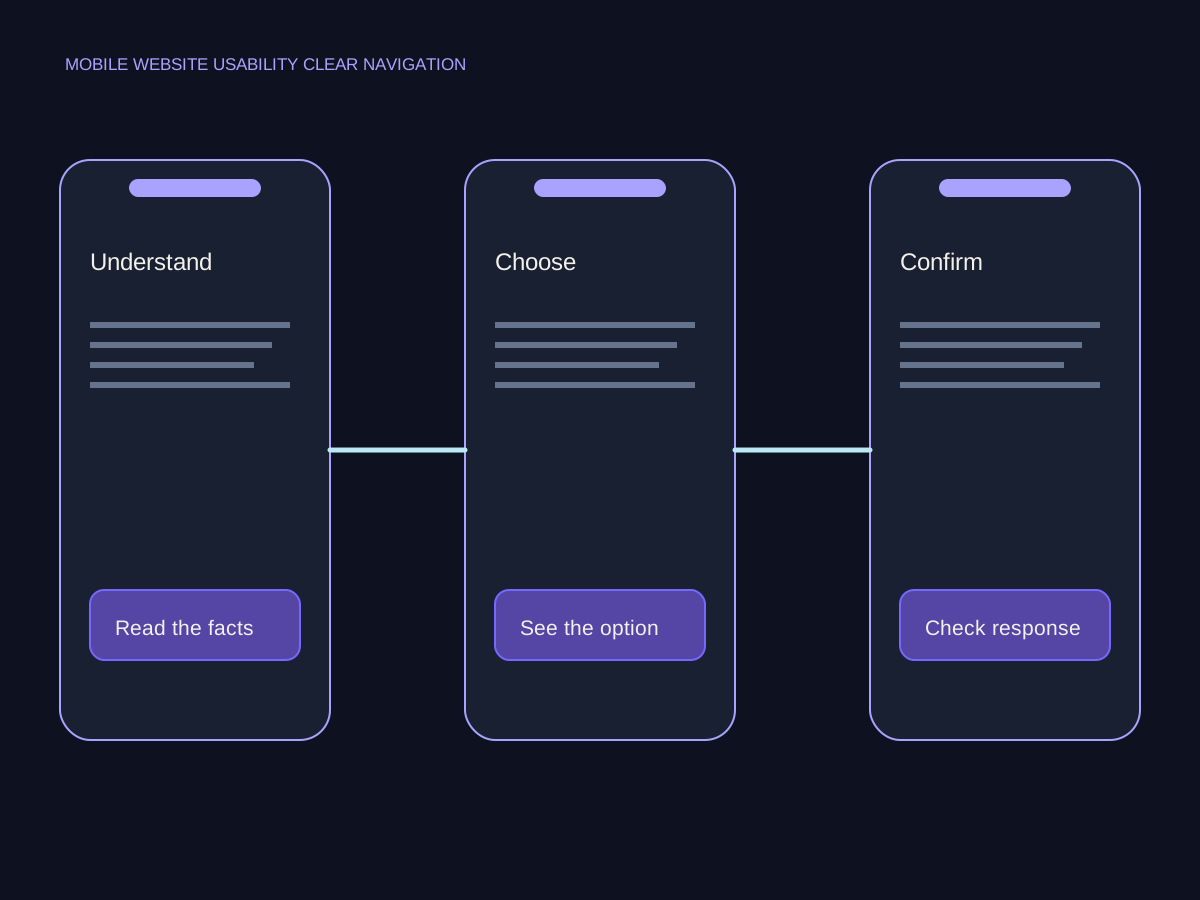
An inquiry journey, one screen at a time.
Use a fictional service inquiry to inspect the entire mobile path. The goal is to understand the offer, choose the relevant route, and see an accurate response after sending a test message.
The service screen.
The visitor should be able to identify the service and any condition that affects suitability. Check that a menu or sticky control does not cover the explanation or the relevant action.
- Service explanation
- Relevant conditions
- Visible next action
The inquiry screen.
Use clear field labels and explain what information the business needs. Keep the reason for the form visible while typing. Test error handling with a missing required field instead of checking only a successful submission.

The response screen.
Confirm that the visitor receives the appropriate validation or confirmation. If the form is a demonstration, the page must say so and must not suggest that a team has received the inquiry.